
Enabling the Transform Menu in BSL Analysis (RSD)
Unlike the full version of Biopac Student Lab software, the BSL Analysis version used by many students outside the lab does not directly support the opening of Lesson and sample data files in BSL PRO mode. BSL PRO mode enables access to the Transform menu and other features helpful for enhanced analysis.
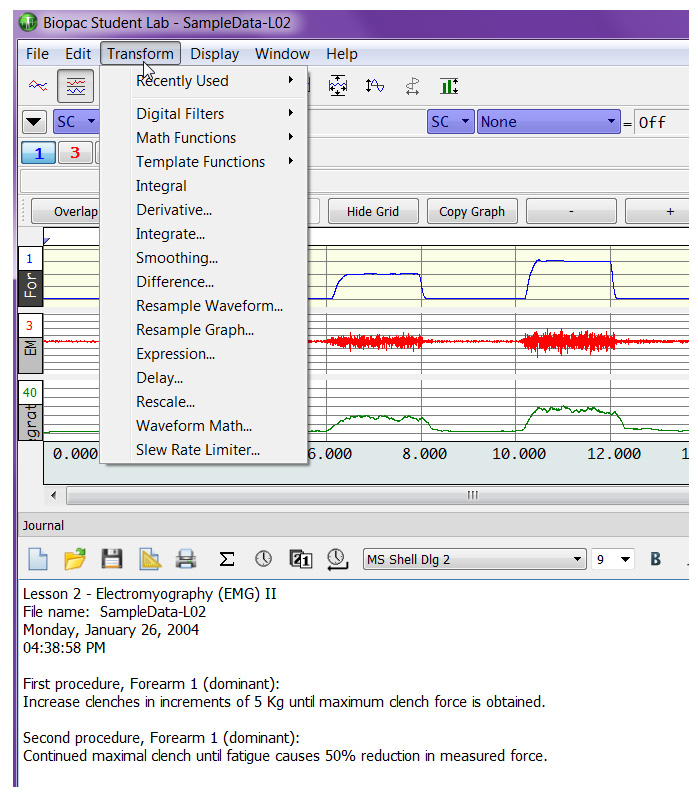 The following steps describe how to edit the LessonPrefSettings.txt file to enable the Transform menu in BSL Analysis version 4.0.1 or above.
1. Locate the LessonPrefSettings.txt file, typically in the LessonsSupport folder in the Program Data directory:
- Windows: <Main Drive>:\ProgramData\BIOPAC Systems, Inc\BSL Analysis 4.x\LessonsSupport\all-lang\
- macOS: Finder\Applications\BSL Analysis 4.x.app – highlight “BSL Analysis 4.x” and choose “Show Package Contents.”
- BIOPAC’s tests with macOS 10.15.7 indicate that heightened security will prevent changes to the LessonPrefSettings.txt file in that specific OS. BIOPAC is searching for a workaround—watch this space for updates.
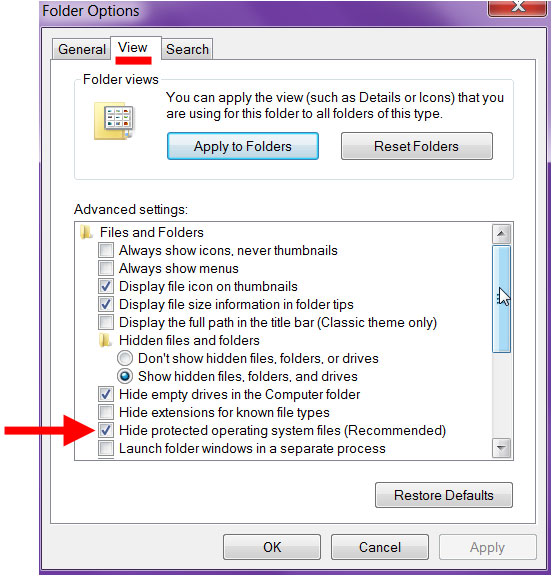
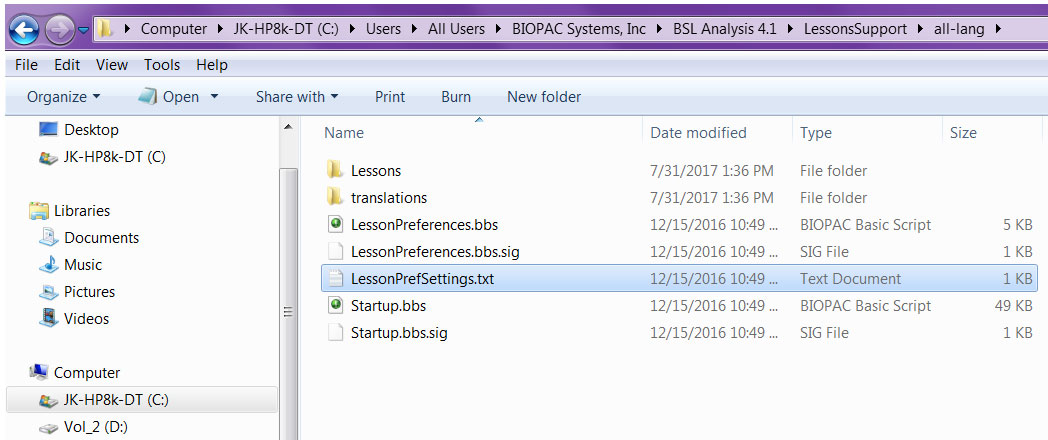 The LessonsSupport folder may be hidden on some Windows systems. If the LessonsSupport folder is not found in the Program Data directory, try the following steps to show the hidden folder:
- Windows 10 users: click the “File” menu, and enable the “File name extensions” and “Hidden items” checkboxes.

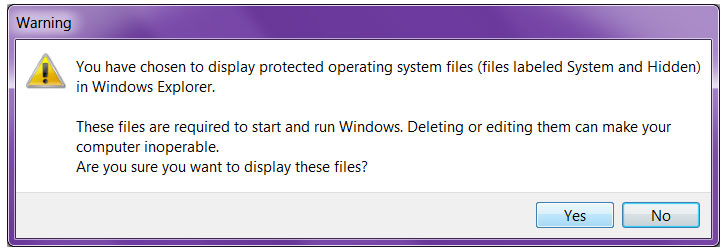
- Windows 8 and 7 users: select “Tools > Folder options…” and click the View tab, then enable the option “Show hidden files, folders, and drives” and click OK; click Yes if prompted .
2. Double-click the LessonPrefSettings.txt file to open it in Notepad (or any text editor).
NOTE: Administrator privileges are required to edit this file.
3. Change the “Review Saved Data Mode Options” value from “1” to “0.”
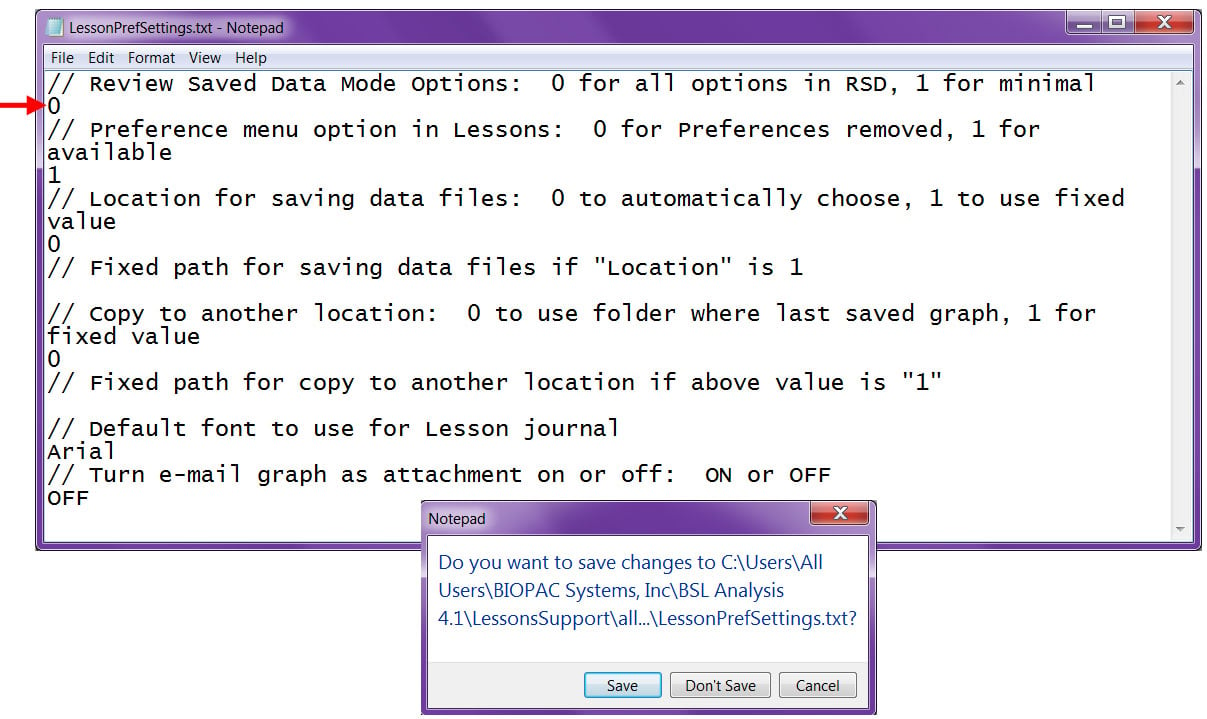 4. Close the file and choose “Save” to accept the changes.
The next time BSL Analysis is launched and a file opened, the Transform menu will be available.
Click here for print-friendly BSL Analysis Transform menu (pdf) instructions.